
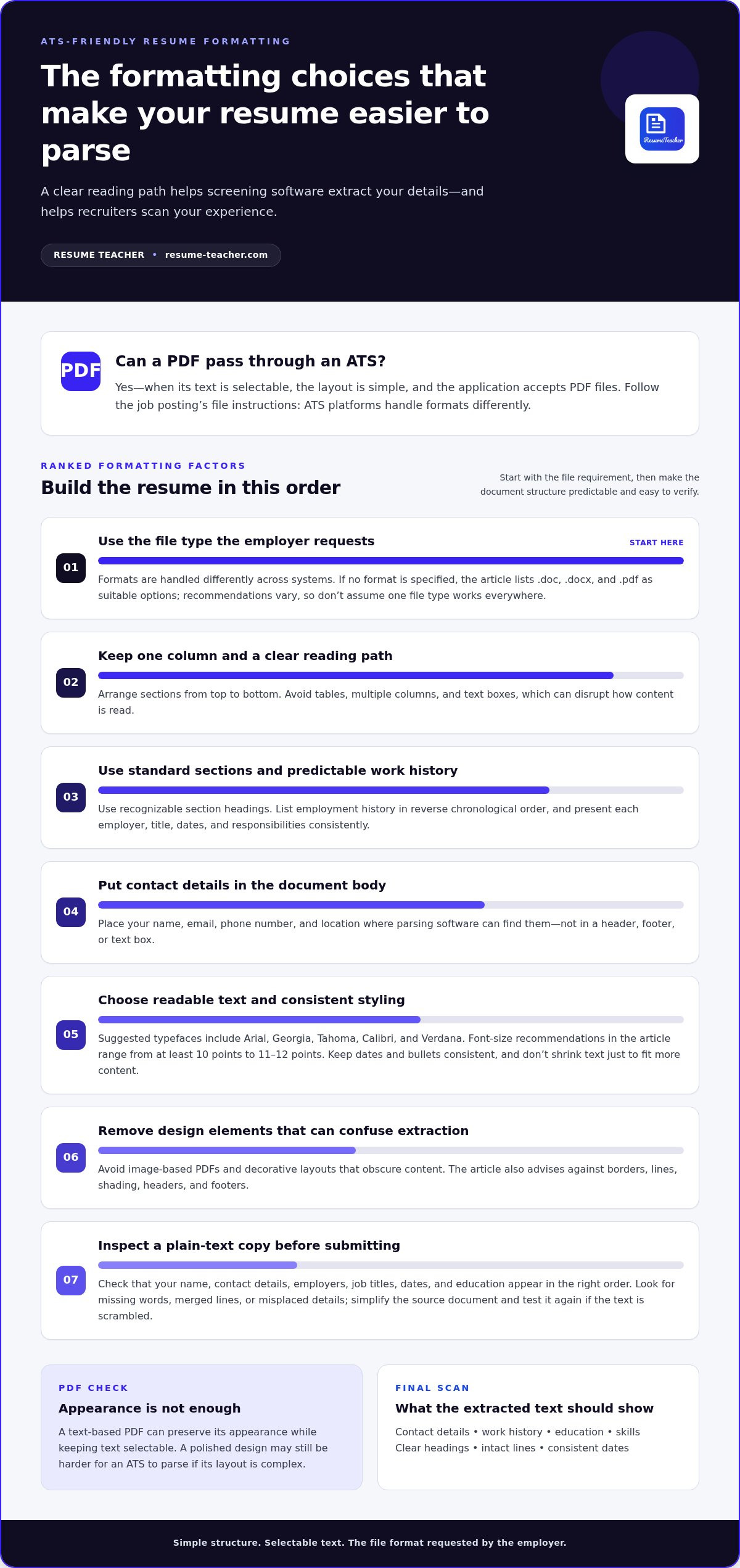
A PDF resume can pass through an ATS if its text is selectable, its layout is simple, and the application accepts PDF files. Effective ATS resume formatting also means using the file type requested in the job posting, since systems handle formats differently. A polished PDF can still be readable by an ATS, but complex design may make its content harder to parse.
It makes sense to want a resume that looks consistent on screen and communicates your experience clearly to screening software. Learn how ATS tools extract resume details and how to format your layout, fonts, dates, contact information, and section headings for easier parsing. The practical steps ahead help you check your resume before submitting your next application.
Key Takeaways
- Match your resume language to the role: use its exact job title and add relevant skills from the posting to achievement-focused descriptions.
- Keep the layout straightforward with one column, standard headings, and no tables or text boxes to make information easier to extract.
- Place your name, email, phone number, and location in the document body, then apply one clear date format throughout.
- Choose a readable standard font and use consistent bullets so both screening software and people can scan your experience.
- Save a plain-text copy to spot missing or distorted content before submitting your resume.
ATS resume parsing and screening
Build your resume for both stages: software extraction and recruiter review. Clear, well-organized content helps the system process your experience and makes your qualifications easier to assess.
-
Understand ATS resume parsing
Start by treating the ATS as a system that organizes application information. It parses resume and application data into an employer database, where people can search and review candidate details. Extracted fields may include your name, email, phone number, location, work history, education, and skills. Greenhouse and Workday illustrate why ATS resume formatting should prioritize recognizable content over visual complexity.
-
Check resume parsing accuracy
Save a copy of your resume as plain text and inspect the extracted content, as MIT Career Advising & Professional Development recommends. Confirm that your name, contact details, employers, job titles, dates, and education appear in the right order. Look for missing words, merged lines, or misplaced details. If the text is scrambled, simplify the source document and test it again.
- Match relevant language to the job posting. Identify the role’s required skills and phrases, then include those you genuinely have in your experience descriptions. UIC Career Services recommends using the exact job title from the position. If the posting names a skill such as “project management,” use that wording where it accurately describes your work. Don’t add qualifications you lack to influence screening.
- Show keywords through evidence. Include relevant skills in achievement-oriented bullet points, not just in a skills list. For example, explain how you used a named tool to complete a project or improve a process. UIC Career Services recommends this approach because it connects keywords with work experience. MIT Career Advising & Professional Development advises using job-posting terms meaningfully, spelling out relevant terms, and avoiding keyword stuffing.
- Keep each term intact and choose the right application method. Avoid splitting a keyword across lines, since an ATS might not recognize it. Include an acronym with its spelled-out form, such as “search engine optimization (SEO),” when both are relevant. If the application lets you upload a resume, UIC Career Services recommends uploading it instead of copying its contents into text boxes. Review the application fields afterward and correct any parsing errors.
ATS-friendly resume layout and formatting
Create a document with a clear reading path, consistent spacing, and standard sections. Choose the file type requested by the employer because ATS platforms handle formats differently.
-
Set an ATS-friendly resume layout
Use a single-column layout and arrange each section in a clear top-to-bottom sequence. UIC Career Services recommends avoiding tables, multiple columns, and text boxes because they can disrupt how content is read. Keep employment history in reverse chronological order, and present each role’s employer, title, dates, and responsibilities consistently. This predictable structure helps software and recruiters find key details.
-
Avoid common formatting mistakes
Remove decorative elements that can interfere with extraction. UIC Career Services advises against headers, footers, borders, lines, and shading. Common mistakes include putting key information in a text box, using a multi-column template, or relying on visual placement instead of a clear section order. Use plain formatting and check that the document still reads logically when its text is extracted.
To avoid common ATS resume formatting mistakes, skip columns, tables, text boxes, headers, footers, and image-based PDFs. These design choices can obscure or scramble information during parsing.
-
Consider US employer recommendations
Follow the employer’s file instructions first. MIT Career Advising & Professional Development recommends using a .doc, .docx, or .pdf file unless the job description specifies another format. UIC Career Services recommends a Word 97-2003 .doc file, noting that some ATS platforms may not read .docx, PDF, RTF, or JPG files. These recommendations differ, so use the requested format for each application.
For “Are ATS resume formatting recommendations different for US employers?”, the core layout advice remains consistent: use a simple, readable structure. The practical difference is following each US employer’s stated upload requirements rather than assuming one file type works everywhere.
- Choose a format that preserves readable text. A PDF can preserve its appearance across devices, while a Word document may display differently. Use a text-based PDF rather than an image PDF, and keep a DOCX version ready when the application requests it. MIT Career Advising & Professional Development lists .doc, .docx, and .pdf as suitable formats unless the job posting directs otherwise.
- Keep the design simple but readable. UIC Career Services recommends simple formatting, while the guide recommends an 11-12-point font. Avoid shrinking text to fit extra content. Instead, remove redundant phrases and keep spacing consistent, so each heading and role remains easy to scan on screen and in print.
Fonts, bullets, dates, and contact details
Use consistent text styling and put key details where parsing software can find them. These steps help make every resume entry clear to both systems and recruiters.
-
Choose resume fonts
Select a standard typeface such as Arial, Georgia, Tahoma, Calibri, or Verdana, which UIC Career Services recommends. Keep the same font family across your name, section headings, and experience entries. UIC Career Services recommends resume text at 11 points or larger; MIT Career Advising & Professional Development recommends at least 10 points. Use the more readable size your page allows, and avoid decorative fonts that may make letters harder to distinguish.
Check the finished file at normal viewing size. For example, compare the lowercase “l” and uppercase “I” in your chosen font, then scan dates and email addresses for clarity. Use bold text to distinguish job titles or section labels instead of switching among several typefaces. Consistent typography keeps extracted text predictable without relying on visual effects.
-
Format resume bullets
Write each bullet as a concise description of an action or result. Start with a clear verb, then identify the work, tool, or outcome. For example, “Prepared monthly sales reports in Excel for regional managers” communicates a task and context in one line. UIC Career Services recommends simple formatting, including bullet points, to keep the resume readable for people.
Use the same bullet character and indentation throughout each role. Avoid unusual symbols, nested lists, and long paragraphs disguised as bullets. Keep related details together, and don’t split an important skill or phrase across lines. A plain round bullet followed by readable text makes each achievement easy to scan and keeps the structure consistent.
-
Present resume dates
Choose one date style and apply it to every job, education entry, and credential. UIC Career Services gives “06/2010 - 08/2012” as an example. Another clear option is the month and year, as in “May 2023 to present.” Keep the same order and punctuation across entries, so readers can compare timelines without interpreting different formats.
Write full year ranges rather than shortened forms. For example, use “2014-2015,” not “2014-15.” Place each date near its associated employer and title, and keep the order consistent for every role. If one job shows dates beside the title, don’t move dates to a different position for the next job.
-
Add contact details
Put your name, email address, phone number, and location in the document body. Keep them out of headers and footers, where extraction may miss them. For example, place your name on the first line, then list your email, phone, and city or region on the next. This sequence helps connect your contact information with the resume.
Use plain text for each detail. Keep your email address and phone number visible rather than embedding them in an icon, image, or graphic. Check that each item remains complete when copied from the document. A missing digit or email character can prevent an employer from reaching you, even if the rest of the resume parses correctly.
Resume sections and standard headings
Give every section a clear purpose and familiar label. A consistent sequence helps readers and screening systems find your experience, skills, and education.
-
Organize resume sections
Arrange your most relevant qualifications logically. A practical structure starts with a summary, continues with work experience, then presents skills, education, and languages where relevant. Keep details beneath the appropriate heading instead of mixing education with job descriptions. ATS parsers may extract school, degree, and graduation date, so group those details in an education section.
Choose sections that fit your background and the role. For example, a recent graduate can place education before work experience, while an experienced applicant can lead with relevant employment. Keep each employer’s role details together, and avoid scattering accomplishments across unrelated sections. A clear structure helps reviewers connect each qualification with its context.
-
Use standard section headings
Label sections with familiar titles such as “Summary,” “Work Experience,” “Skills,” and “Languages.” These standard headings make information easier to identify than creative labels such as “My Journey” or “What I Bring.” UIC Career Services recommends considering all-capital headings to help an ATS categorize resume information. Choose one style and use it consistently.
Use a heading that describes the content directly. For example, label employment history “Work Experience” rather than “Career Highlights” if it lists jobs, employers, and duties. Set headings apart from the text beneath them with simple bolding or capitalization. Avoid putting a heading inside an image or decorative shape, where its wording may not extract as expected.
- Give skills their own section. Add a dedicated “Skills” heading so important capabilities are easy to find. Then reinforce relevant skills in your work experience, where examples show how you applied them. For instance, list “Excel” in Skills and describe a spreadsheet task under a relevant role. This pairing makes the skill easy to spot and gives readers useful context.
Prioritize skills related to the target position. Keep the section focused instead of listing every tool or competency you have encountered. Use the job posting’s wording when it accurately describes your experience. A concise list supports quick scanning, while specific examples elsewhere show how you have applied those skills.
- Separate credentials and qualifications. Put a required certification on its own line rather than beside your name. UIC Career Services recommends this placement to keep your name distinct from professional credentials. If you are pursuing a required certification, UIC Career Services advises identifying it as “in progress.” For example, list the credential and its status together under a “Certifications” heading.
Keep education entries consistently structured. Present the school, degree, and graduation date together under “Education,” since ATS parsers may extract those details. Use the same order for each entry, then check that each credential appears under the right heading. This makes your qualifications easier to interpret without mixing them with unrelated experience.
- Make headings consistent across the document. Use the same capitalization and wording for every section label. If you choose “WORK EXPERIENCE,” don’t switch later to “Education” in mixed case without a reason. UIC Career Services recommends considering all-capital headings, but clarity matters more than decorative styling. Review the extracted text to confirm each heading remains beside its section.
Before submitting, compare each section label with its contents. “Languages” should contain language abilities, while “Skills” should hold role-related competencies. Replace unusual labels with direct alternatives, and remove headings that introduce no useful information. This final review keeps the structure predictable for screening software and hiring teams.
How can I check whether an ATS can parse my resume correctly?
Test the actual document, not just how it looks. Use these steps to catch missing text, broken reading order, and application-field errors before submitting.
- Save a plain-text copy. MIT Career Advising & Professional Development recommends checking a resume as plain text to spot missing or distorted content. Open the text version and scan it from the first line to the last. Confirm that words, dates, and section labels appear instead of blank spaces or stray symbols. This quick test can reveal extraction problems hidden by a polished PDF.
- Check the reading sequence. Compare the extracted text with your intended resume order. Your name should come before your summary, and each employer should stay with its job title, dates, and description. For example, if the text places a role’s dates under the next employer, revise the document’s structure. Check education and skills the same way, ensuring each detail stays with its heading.
- Audit essential details. Search the text copy for your name, email address, phone number, location, employers, job titles, and education. Check every character in your email and phone number. Confirm that a degree remains paired with its school and graduation date. If a field disappears or merges with another entry, return to the source file and simplify the affected layout.
- Inspect keywords and special characters. Find terms that matter to the target role, then confirm their full spelling in the extracted text. Check acronyms, hyphens, bullets, and punctuation. For example, compare “project management” in the document with its extracted version. If the phrase breaks between lines or a symbol replaces a letter, revise that line and repeat the plain-text check.
- Review the application after uploading. If an application displays extracted details, compare those fields with your resume before submitting. Correct errors in fields such as employment dates, job titles, and contact information. If there is no preview, use the plain-text copy to check the document, then follow the employer’s requested file format. Different ATS platforms can process the same layout differently.
Need a clean starting structure? Build a resume with clear sections, then run these checks before applying.
Resume Teacher: AI Resume Writer
Resume Teacher’s AI Resume Writer can help turn your experience into a structured resume draft. Use it to organize role details, skills, and achievements before applying the parsing checks in this guide. Resume Templates provide a starting structure, while the AI Cover Letter Generator and Cover Letter Templates help you prepare application documents.
Review every generated detail for accuracy, then tailor the wording to the specific job posting. Keep your qualifications accurate, use clear section labels, and follow the employer’s file instructions when submitting. These tools help prepare your application materials; your final review ensures they reflect your background and the role.
Visit resume-teacher.com to explore Resume Teacher’s resume-writing tools.
Make Your Next Application Count
Your resume is more than a file to upload. It’s a working document that should communicate your strengths clearly, support your application, and adapt to the role you want. Treat ATS resume formatting as part of that preparation, not a last-minute design task. Before sending an application, make sure the content reflects your experience and the position’s priorities.
To create or refine your document, use Resume Teacher’s Resume Builder, AI Resume Writer, and Resume Templates. Shape your draft with these tools, then review every detail to ensure the final version accurately represents your skills and work history.
Contact Resume Teacher for resume help and take the next step toward a clear, focused application. You’re ready to put your experience forward with confidence.
Frequently Asked Questions
Can ATS systems read PDF resumes?
Yes, ATS systems can read text-based PDF resumes, but parsing varies by platform and file structure. MIT Career Advising & Professional Development recommends .doc, .docx, or .pdf files unless the job posting requests another format. A PDF made from a scanned image may not expose selectable text. Before uploading, select and copy a sentence from your PDF. If the pasted text is missing or scrambled, use a text-based file instead.
Can I use a two-column resume for ATS?
A single-column resume is the safer choice because two-column layouts can disrupt reading order. UIC Career Services recommends avoiding multiple columns, tables, and text boxes. For example, a sidebar may hold skills while the main column lists work history, but an ATS could extract the sidebar between job entries. Keep related information in one vertical sequence, especially when applying through a system that displays parsed fields.
How do I optimize my resume for ATS?
Tailor your resume to the role by selecting relevant terms from the job description and using them accurately in your experience. For example, if a posting asks for “budget forecasting,” include that phrase in a bullet describing your related work. Pair each keyword with context instead of repeating it in a block. UIC Career Services also recommends using the position’s exact job title and avoiding skills you don’t have.
How does an ATS scan and rank resumes?
An ATS extracts resume and application details into an employer database, where hiring teams can search candidate records. Systems may score resumes using keyword matches, recency, and relevance, though the process varies by platform. For example, a recent role using a required tool may align more closely with a posting than an older mention in a skills list. Clear, accurate descriptions help connect your qualifications with the job criteria.
What are the tips to pass ATS screening?
Align your resume with the job’s actual requirements, then make each relevant qualification easy to find. Use the posting’s terminology naturally, connect skills to work examples, and spell out an acronym alongside its full term when both matter. For example, write “customer relationship management (CRM)” if the role uses either form. Never add unrelated keywords or claim a skill you can’t support with experience.
What is an ATS functional resume template?
An ATS functional resume template groups information by skill area rather than emphasizing chronological job history. It may suit someone highlighting transferable capabilities, but UIC Career Services classifies functional resumes as higher ATS risk than chronological or hybrid formats. A hybrid structure can foreground relevant skills while still showing employers, titles, and dates. Choose the format that presents your experience accurately and follows the application’s requirements.
What is an ATS-friendly resume?
An ATS-friendly resume presents your qualifications in a structure that software can extract and people can review. It uses familiar section labels and connects relevant skills with specific work examples. For instance, a “Skills” section can list SQL, while an experience bullet explains how you used SQL for reporting. The aim isn’t to write for software alone, but to make each qualification clear in its hiring context.
What resume formats are most compatible with applicant tracking systems (ATS)?
Use the file type named in the application instructions. MIT Career Advising & Professional Development recommends .doc, .docx, or .pdf unless the job posting specifies another format. A simple, text-based PDF can preserve the document’s appearance, while a Word file may suit an application requesting that format. Avoid image-only PDFs and Apple Pages files, which the guide identifies as formats to avoid for ATS compatibility.

Article by
Dr Mutyaba Ashraf Semakula
Hi, I’m Ashraf, the founder of ResumeTeacher, a platform dedicated to helping people present their skills, experience, and achievements with confidence.
I created ResumeTeacher because I believe everyone deserves the opportunity to pursue their career goals. However, writing a professional resume or cover letter can be challenging, especially when you have valuable experience but struggle to communicate it effectively. My goal is to make that process simpler, more accessible, and less stressful.
I’m passionate about technology, career development, and creating practical solutions to everyday challenges. Through ResumeTeacher, I help job seekers build professional resumes, create compelling cover letters, and organize their job applications more effectively.
I also enjoy sharing practical advice through articles on resume writing, job search strategies, interview preparation, and career growth. I want my content to be useful, easy to understand, and relevant to people at different stages of their careers, from first-time job seekers to experienced professionals looking for new opportunities.
Building ResumeTeacher is my way of combining technology with a purpose that matters to me: helping people communicate their value and approach their careers with greater confidence. I believe that while no tool can guarantee a job, having the right resources and presenting yourself professionally can make the journey easier.
Through my work and writing, I hope to help people recognize their strengths, improve their applications, and take meaningful steps toward their professional goals.